Chrome Cursive - Chromebook Note Taking
Updated:
You can capture, edit and organize handwritten notes with the Cursive app and a touchscreen Chromebook that works with a stylus. You can also use touchscreen gestures to edit your notes.Your notes sync to your Google Account, so that you can find them with your Chrome browse
Create and edit notes
- Open Google Cursive. Or, in the row of apps at the bottom or side of your touchscreen, tap Stylus
then Create note
.
- In the window that opens, use your stylus to take notes.
- At the top, change the color and size of your lines with the toolbar.
- To move or resize your notes, tap Select
, and select the text that you want to change with your stylus.
Lock your Canvas
If you don't want to scroll or zoom your Canvas, for example, when resting your palm on the screen, you can turn on the Canvas lock.
- At the top right, select More
then Show Canvas lock.
- At the top right of the Canvas, the lock indicator appears in the default state Unlocked
.
- To lock the Canvas, select Lock. The lock indicator now appears as Locked.
Tip: The Canvas lock turns off when you open a new note, or if you hide the 'Show Canvas lock' option.
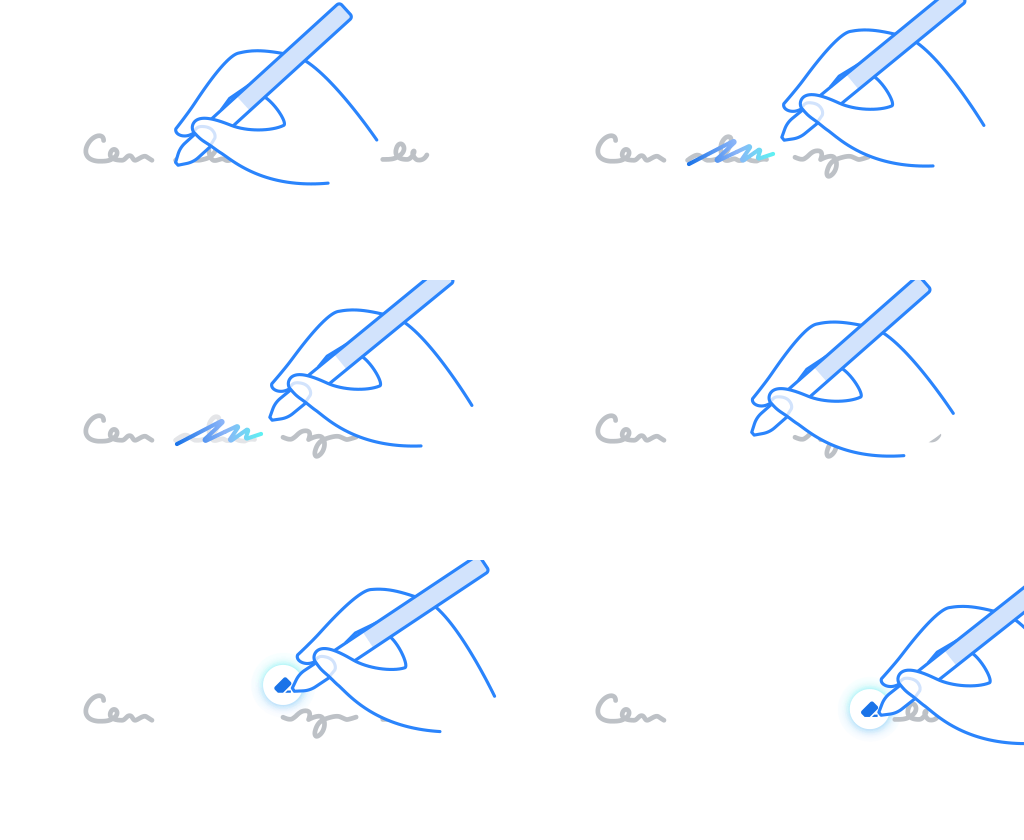
Scribble out delete
To delete words or phrases in your note:
- Scribble over the word or phrase that you want to delete with your stylus.
- Tap the screen with your stylus to delete.
Tip: To delete more text, drag your stylus to get the eraser tool.
Select note text
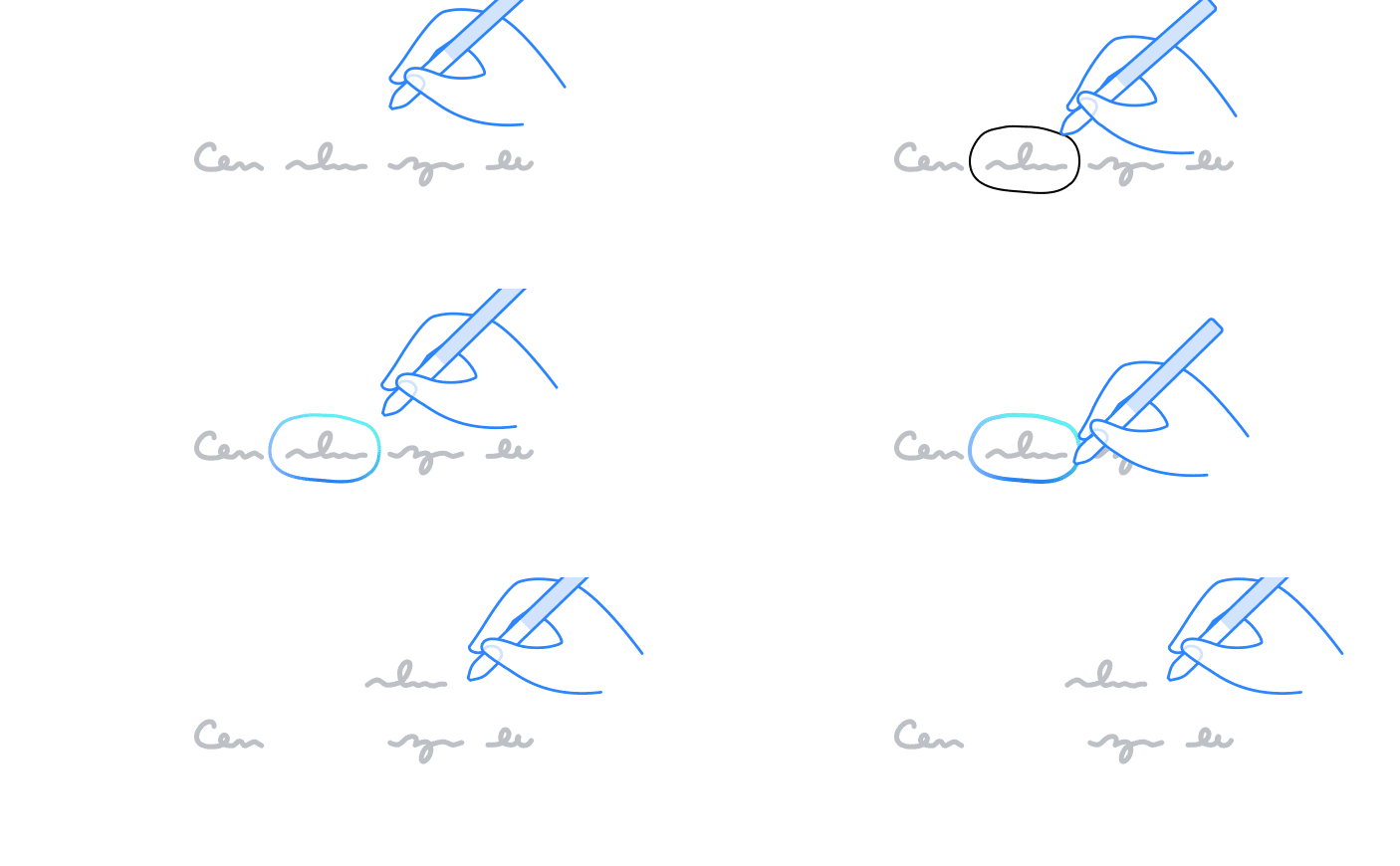
To select words or phrases within your note:
- Draw a circle around the word or phrase that you want to select with your stylus.
- To move your selection around, tap and drag the circle with your stylus or finger.
Add more space between lines
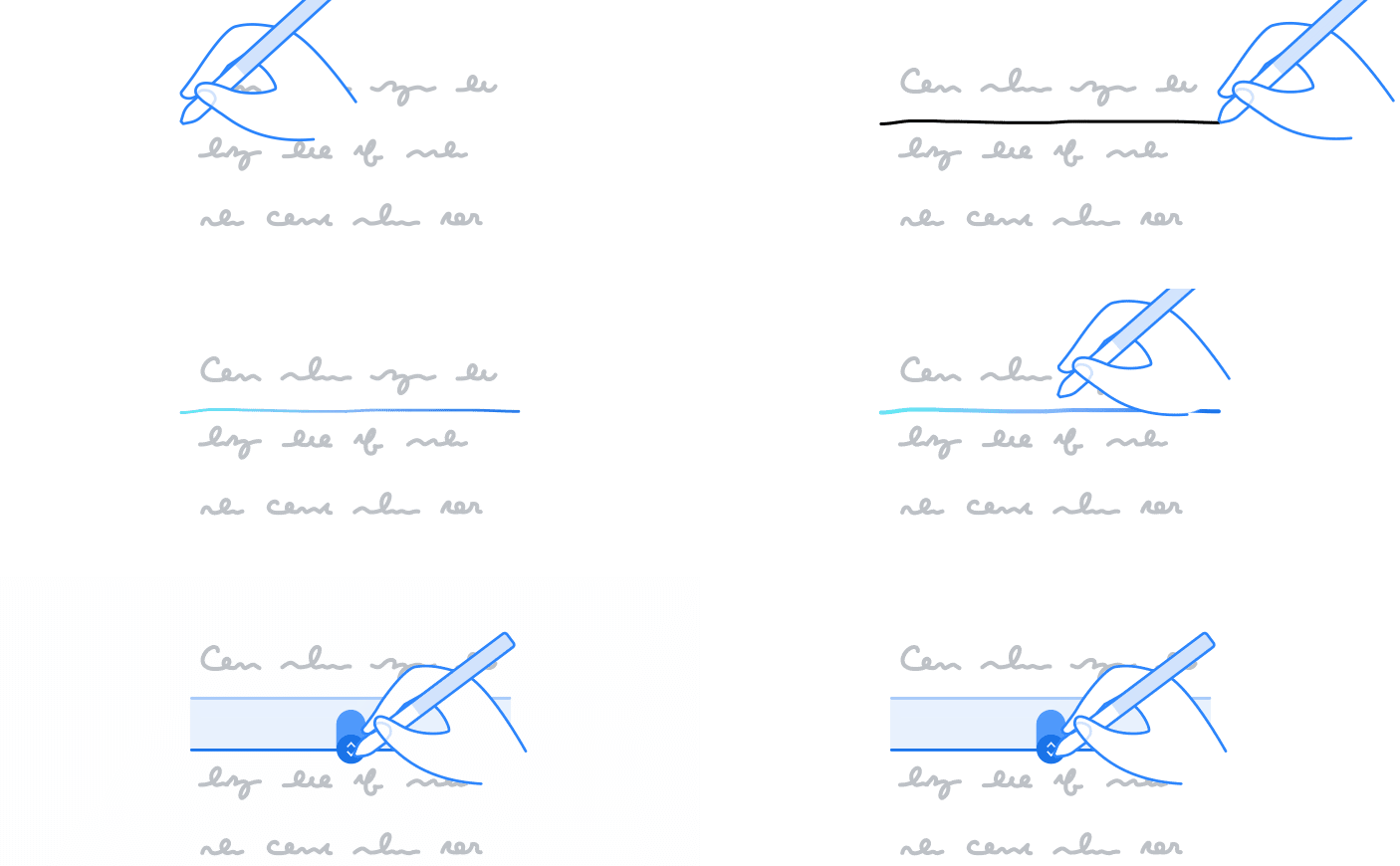
To add more room between lines or phrases:
- Draw a line with your stylus where you want to add more space.
- Tap and drag the line down with your stylus or finger.
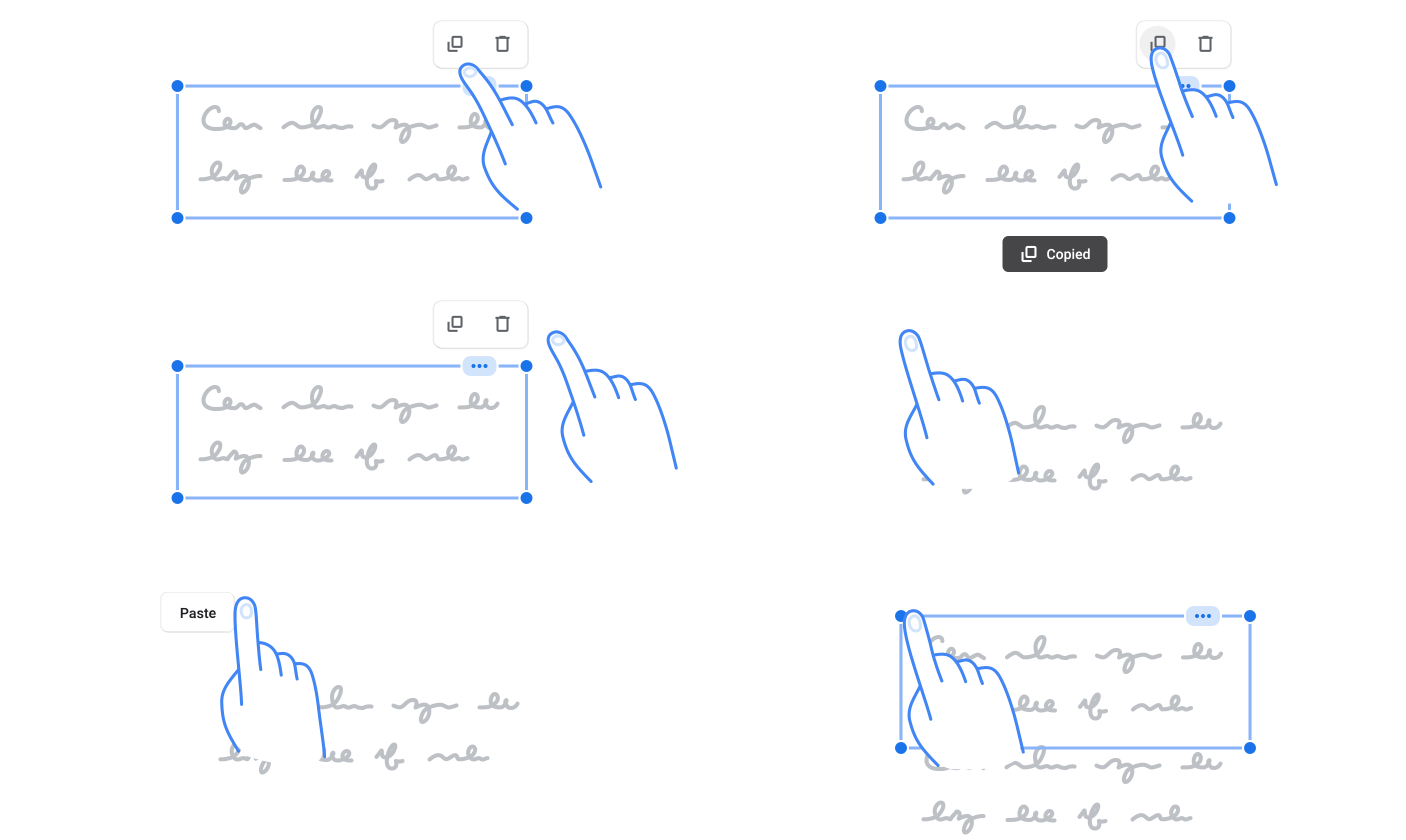
Copy and paste notes
To copy:
- Select your note text.
- Tap Menu
then Copy
.
To paste:
- Touch and hold anywhere within your note.
- Tap Paste.