
Use Handwriting Instead of Keyboard - Chromebook
With Blue Jacket's new fleet of Chromebook Plus devices, users can utilize their work devices as a laptop, tablet, and notetaker. With the addition of a stylus pen, you can write on your device simply and naturally while it is folded into the tablet position or at an angle that makes the keyboard inaccessible.
- Fold the device so that the keyboard is no longer in front of the screen
- Click into a text-box, such as the google search bar. The on-screen keyboard will appear.
- Select the scribble icon
- Begin writing with your stylus
Layout
The layout icon lets you change the size of the on-screen keyboard as you can switch from a full-screen keyboard to a compact (floating) and vice versa.

When the keyboard is in compact mode, you can move it across the screen and keep it anywhere you like. Drag the floating keyboard using the four-arrow handle at the bottom of the keyboard to reposition it.

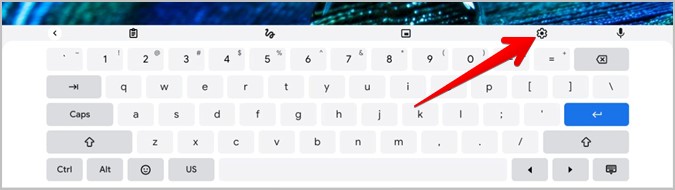
Settings
The Settings icon takes you to the keyboard settings, which can also be accessed from Chromebook Settings > Advanced > Languages and inputs > Inputs & keyboards.
Microphone
The Microphone icon on the on-screen keyboard allows you to type using voice. Whatever you say will be converted into typed text.

